From Meta Quest 3 to Steam Frame with FramePort
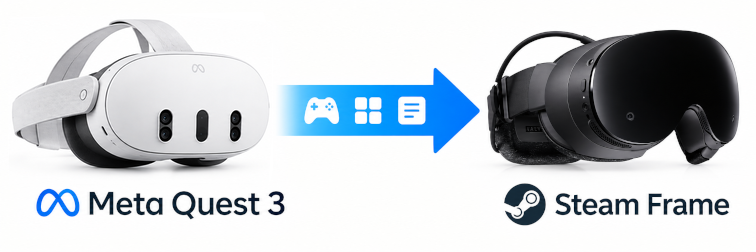
Since I wrote Adventures in VR virtual reality has been gaining weight among my interests and my free time. From those Oculus Quest 2 I moved on to the Meta Quest 3 and, with them, I bought a considerable number of games/apps in the Meta store. I am now in the middle of a migration to the Valve Steam Frame and the problem of changing platform is a serious one. From the economic point of view (I do not want to lose everything I have invested) and from the logistical one (I do not want to have two equivalent headsets, and ideally I would like to sell the Quest and recover part of the investment).
Looking for a way to solve it, or at least to mitigate it, I came across FramePort, a free project that installs Quest games, Android apps and PC VR games on the Steam Frame. It does not limit itself to copying the app. It converts its VR calls to the OpenXR standard and applies patches so that it starts on the Frame. For it to work its magic, you have to supply the game packages. And that was all the work, getting the games I already own out of the headset.
Two scripts my agent wrote took care of that (Hermes, the one from a couple of articles ago). The first one, extract-quest-games.sh, downloads the files of every installed game and puts them where FramePort expects them. The second one, identify-quest-games.py, works out which game each package belongs to. In this article I describe what FramePort does, how the headset and the computer are prepared, and I leave the complete procedure I followed with Hermes, step by step, to move a library bought in Meta to a Steam Frame.
Quest games from the inside
The Meta Quest run on Android (Horizon OS) and that, for what concerns us here, is a stroke of luck. Every installed game is an Android package like those on any phone.
- The APK: the program. Sometimes it is a single one and sometimes it comes split into a
base.apkplus severalsplit_config.*.apk. - The OBB files: the game data (textures, levels, audio) that does not go inside the APK. On the headset they live in
/sdcard/Android/obb/<package>/.
The headset does not show any of this to the user, but it does to Android's debugging protocol (adb), the same tool used to interact with the system of an Android phone.
What FramePort does (and what it does not)
FramePort is free software (GPL-3.0) and runs on Windows, macOS and Linux. Inside it chains several pieces together:
- OVRPort: translates Meta's own VR calls into the standard OpenXR that the Steam Frame understands. It is the conversion that allows a game made for Meta's headset to run on Valve's headset.
- Lepton: Valve's Android runtime on the Frame, which is where the converted game runs.
- Recipes: patches and settings tested by the community for more than 120 games, which update themselves without touching the user's files.
- Proton and FEX: for PC VR games and Windows programs, which is not what concerns us today.
Games I own
The whole procedure works on what is already installed on my headset with my account: there are no downloads from third parties and no unlocking tools. FramePort does not need or offer them either.
Preparing the headset: developer mode
Before the Quest talk to the computer you have to turn on developer mode. It is a short procedure, but it has a step that can be a nuisance if you do not know about it:
- A developer account with an organisation. On
developer.oculus.comyou have to create an organisation (free of charge). Without it the developer mode switch simply does not appear in the phone app. - Turn the mode on. In the Meta Horizon app on the phone: headset → Headset Settings → Developer Mode → enable it. The headset asks to restart.
- Authorise the computer. With the USB-C cable (a data one, not charge-only) and the headset on, a USB debugging dialogue appears. Accept it and tick Always allow from this computer.
The check that everything is in place is adb devices, which should answer device. If it answers unauthorized, the dialogue from step 3 has not been accepted.
Preparing the computer: adb
adb comes with the android-tools package on Arch and with adb on Ubuntu. On Linux you also need a udev rule, because without it it only works as root:
1 2 | |
Extracting the games from the headset
FramePort needs a specific file structure for each game. One folder per game, the APK inside it and a subfolder with the exact package name that holds the OBB files:
1 2 3 4 5 6 | |
The pieces of one game go together (several APKs inside one folder count as a single game) and the OBB files are never renamed, because the game looks for them by their exact name.
The script walks the headset's apps, copies every APK of each one and pulls its OBB folder to the right place.
1 2 3 4 5 6 7 8 9 10 11 12 13 14 15 16 17 18 19 20 21 22 23 24 25 26 27 28 29 30 31 32 33 34 35 36 37 38 39 40 41 42 43 44 45 | |
It is saved on the computer, given execution permission and run:
1 2 3 | |
Download extract-quest-games.sh
With that the ~/QuestGames folder already holds the material with the layout FramePort scans.
Batch downloads
My Quest 3 are the 128GB version. I have not been able to keep every game I own downloaded at once for a long time. Many times, to install a new game (or an old one I felt like replaying), I had to uninstall another. Now, to download every game in the library, I have had to run the script several times, after wiping all the games at the start and installing a batch of the library to download them.
Identifying each package
Some packages explain themselves (com.Arvore.Yuki is Yuki), but with others it was hard to work out which games they were from the package alone.
The name is inside the APK, but it cannot be read by hand. The AndroidManifest.xml you see when you open the APK file (with any decompressor) is not text XML, it is in binary format (AXML), and the app name is almost always a reference to a resource (@string/app_name) that has to be resolved against the APK's resource table.
The piece that does that job is androguard, a Python library that needs neither the Android SDK nor Java:
1 2 | |
The second script walks the games folder, picks the base APK of each game (the base.apk, not the split_config.*), reads its manifest and writes three things:
| File | Content |
|---|---|
mapping.tsv |
package, name, version, main activity, folder and APK |
icons/<package>.png |
each game's icon at 192 px |
iconos.html |
a listing with icon, name and package, to put a face to the doubtful ones |
1 2 | |
The renaming leaves each folder as Name [package], which reads much better, and it touches nothing if the destination already exists, so it can be repeated without fear.
Download identify-quest-games.py
The headset's name is not the store's
What the script gets is the name the game presents itself with on the headset, which does not always match the one on its page in the Meta store. To settle those doubts the listing generated in iconos.html helps.
Installing it on the Steam Frame
With the folder ready, the rest is done in FramePort: Add games → Scan a folder... pointing at ~/QuestGames (the scan looks up to five levels deep) or Add an APK... for a single game.
The games appear in the library with their artwork and, from there, Install on Frame patches them, uploads them to the headset and adds them to the Steam library. The files left on the computer are not touched: FramePort works on a copy.
What is not going to work
There are limits that no patch fixes:
| Case | Why |
|---|---|
| 32-bit-only games | The Frame does not run 32-bit apps. However, it appears that starting with version 1.2.0, a 32-64-bit translator has been included. |
| x86-only games | The Frame's processor is ARM. |
| Games from the Pico or HTC systems | They use their own VR layer, not Meta's. |
| Android XR apps | A different system underneath. |
| Games that validate the licence in the Oculus app | They ask for a service the Frame does not have. |
None of these limits is detected while extracting, they show up when installing and launching the game on the headset, so the list of what works gets discovered game by game.
Conclusion
With the two scripts (with the first one, really), a library that was tied to Meta's headset becomes a folder of files I can install on the Steam Frame. Extracting is a while in the terminal, and from there on FramePort does the rest.
There is work ahead. The migration is not copying and done. There are games that will never start because of the limits above and others that will need adjustments, and it is quite possible that another library throws up cases I do not tell here. But the starting point is already solved, and whatever I buy from now on I can take to the Frame the same day. On top of that, the FramePort project is under continuous development. Every version increases the number of tested games and of those where the compatibility of the adaptation to the Frame is guaranteed.
About the scripts, I admit that nowadays there is little merit in producing them, or almost in sharing them. Anyone can build them with a good programming agent, but since I already have them generated it costs nothing to offer them.